

The Playground is the main workspace for developing against your MCP servers. It combines chat, manual tool invocation, widget rendering, traces, and a live JSON-RPC logger into a single IDE-style surface so you can build, test, and debug an MCP server (or compare several side by side) without switching tabs.Documentation Index
Fetch the complete documentation index at: https://mcpjam-mintlify-docs-update-pr-2303-1779948952796.mintlify.app/llms.txt
Use this file to discover all available pages before exploring further.
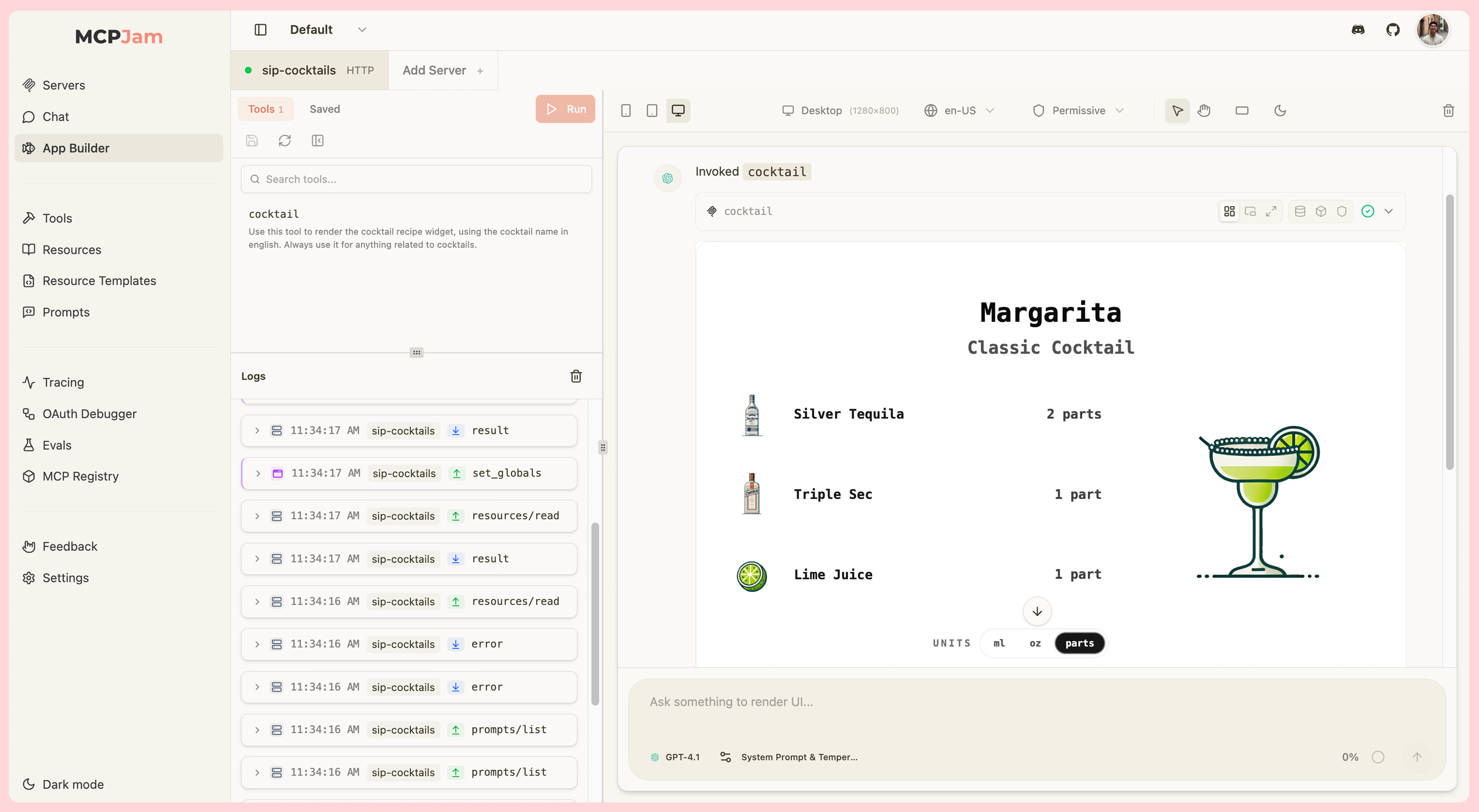
The Playground replaces the standalone Chat and App Builder tabs.
Everything those tabs did is here, plus multi-host compare and a dockable
Sessions rail.
Key Features
- Chat with frontier models — Talk to your server using Claude, GPT, Gemini, DeepSeek, and more at no cost, no API key required. Bring your own key for custom providers.
- Manual tool invocation — Run any tool from the Tools rail with your own inputs to iterate on a widget or response without prompting a model.
- Widget emulator — Render widgets exposed via
openai/outputTemplate(ChatGPT Apps) orui.resourceUri(MCP Apps) the same way a real host would, with Inline, Picture-in-Picture, and Fullscreen display modes. - Chat / Trace / Raw views — Switch between the conversation, a timestamped timeline of every step (with per-step latency and tokens), and the exact JSON payload sent to the model.
- Multi-model compare — Send a single prompt to up to 3 models at once and watch the responses side by side.
- Multi-host compare — Render the same tool call under multiple host configurations (ChatGPT vs Claude, different device sizes, different capability sets) at the same time.
- Display context controls — Device viewport, light/dark theme, host style, locale, timezone, CSP mode, device capabilities, and safe area insets — all live in the toolbar.
- Per-widget debugging — Inspect raw tool input/output,
widgetState, model context, and CSP violations from icons above each widget. - JSON-RPC logger — Real-time, filterable feed of every message between the inspector and your servers.
- Sessions rail — Resume, archive, and search past conversations from the left rail.
- Skills and prompts — Type
/to inject skills or MCP prompts directly into the chat. - Save as a View — Snapshot any tool execution to Views for offline browsing and team sharing.
Getting Started
- Connect a server — Add and connect an MCP server from the Clients tab (or the + button in the chat input).
- Open the Playground — Switch to the Playground tab.
- Send a message or run a tool — Either chat with your server from the input bar and let the model call tools, or pick a tool from the left rail and execute it with your own input.
Layout
The Playground is a three-column IDE shell. Each side rail is collapsible — drag the divider or click the peek strip to hide or restore it. Left rail — Tools / Sessions- Tools (default) — Every tool exposed by your connected server(s). Pick one to fill in inputs and run it manually. When more than one server is selected, tools are aggregated across all of them and routed automatically on execution.
- Sessions — Browse, resume, rename, archive, and search past chat threads in the current project.
- Chat composer, conversation thread with inline tool calls and widgets, and the host context toolbar.
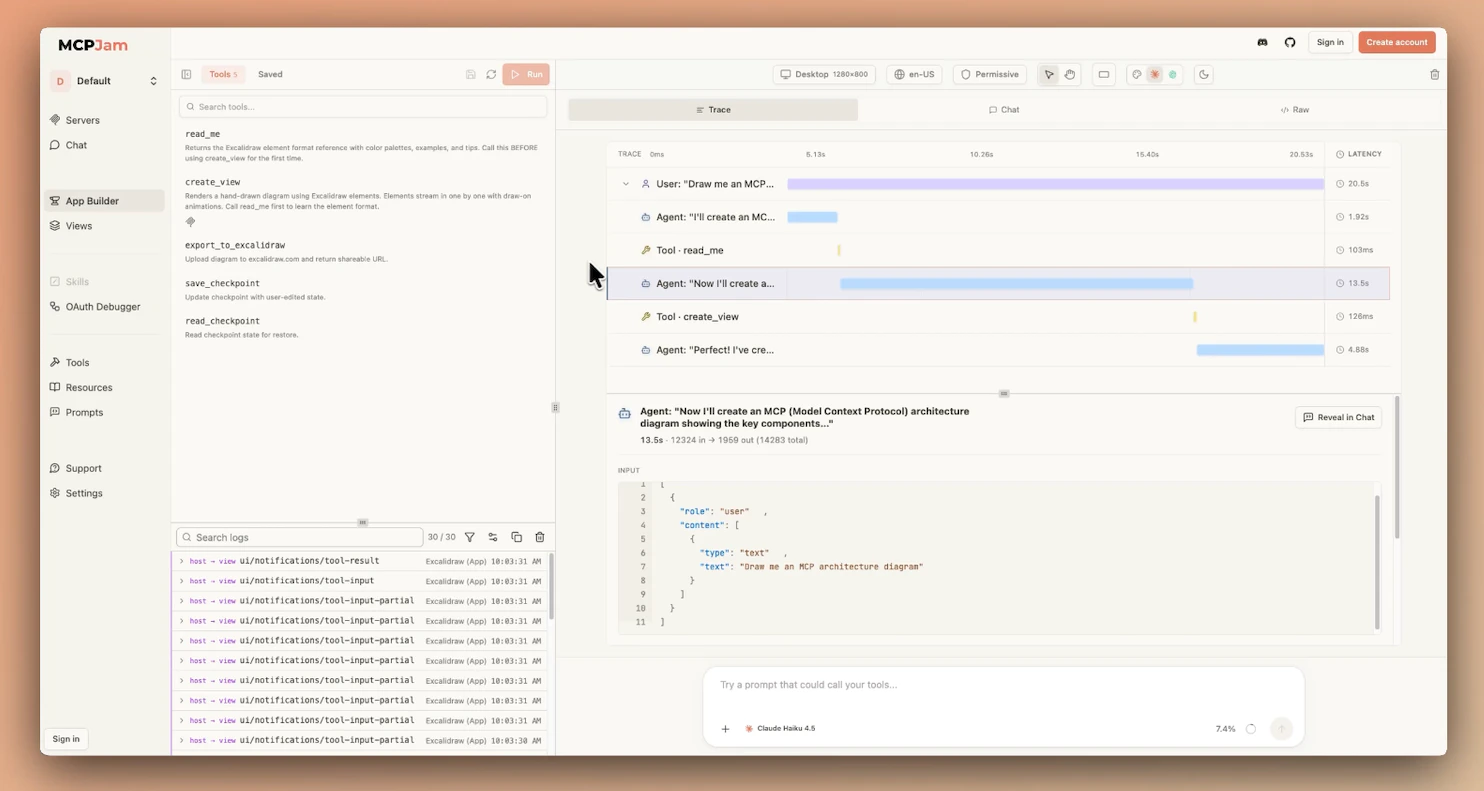
- Top of the pane has a segmented control to switch between Chat, Trace, and Raw views.
- Real-time feed of MCP protocol messages. Search, filter by source server, filter by log level, copy, download, or clear the buffer.
Chat, Trace, and Raw Views
Switch between three perspectives on the same conversation from the segmented control at the top of the center pane:- Chat — The normal thread with inline messages, tool calls, and rendered widgets.
- Trace — A timestamped timeline of every step (user turns, agent turns, tool calls) with per-step and total latency and token counts. Expand any step to inspect its raw input and output.
- Raw — The full JSON payload sent to the model (system prompt, tool definitions, conversation history). Updates as the conversation changes. Useful for debugging tool schemas and verifying what the model actually sees.
Tools Rail (Manual Invocation)
Open the Tools tab in the left rail to invoke any tool by hand:- Select a tool to load its input form generated from the tool’s JSON Schema.
- Fill in fields, toggle optional fields on or off, and click Run to execute.
- The result appears in the center pane just like a model-issued tool call, with the same row of debugging icons and widget rendering.
- Click Refresh to re-fetch the tool list from the server (useful after a server reload).
- Click Save to persist the current inputs as a saved request you can rerun, rename, duplicate, or delete from the same panel.
Multi-Model Compare
Send one prompt to up to 3 models simultaneously. Open the model picker, toggle Multiple models on, and select the models you want to compare. Each model’s response — including tool calls and rendered widgets — appears in its own column.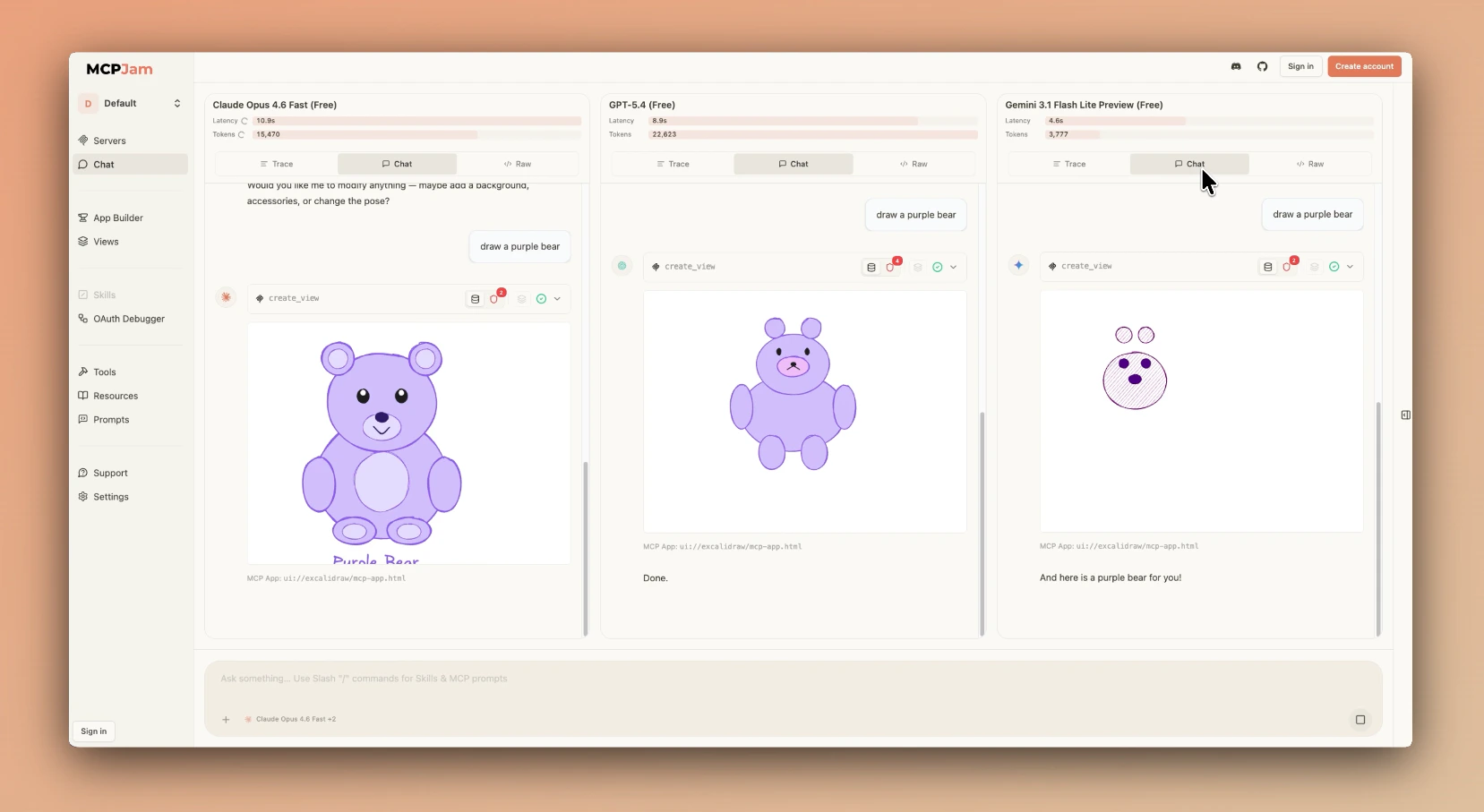
Multi-Host Compare
Toggle Multiple hosts on in the host picker (top-left of the center header) to render the same tool calls under different host configurations side by side — for example, ChatGPT vs Claude host style, or desktop vs mobile viewports. One column is designated the lead host; chip tooltips in the toolbar say “Editing lead host: <name>” so it’s clear which column the host controls (theme, device, locale, etc.) currently bind to. Click another column’s chip to promote it to lead. This is the fastest way to verify that a widget renders correctly across the host environments you intend to ship to.Sessions
The Sessions tab in the left rail lists every saved conversation in the current project, grouped by recency. From here you can:- Open a session to resume it in the center pane.
- Rename, archive, or delete individual sessions.
- Archive all sessions at once.
- Search across session titles.
Host Context Toolbar
The toolbar above the chat thread controls how the active host renders your widgets. Every change applies to the next tool call and to already-rendered widgets where applicable.Device Viewports
- Desktop (1280×800)
- Tablet (820×1180)
- Mobile (430×932)
- Custom — Any width and height from 100 to 2560 pixels
Theme
Toggle light and dark mode to test both appearances.Host Style
Switch between Claude and ChatGPT host styles. For MCP Apps that use the MCP Apps style variables, the ChatGPT toggle translates the widget’s styles to ChatGPT’s design tokens.Locale
Pick a BCP 47 locale (e.g.en-US, es-ES, ja-JP, fr-FR) to verify internationalization.
Timezone
Choose from 19 IANA timezones plusUTC to test time-aware widgets.
The timezone control is only available for MCP Apps (SEP-1865).
CSP Mode
- Permissive (default) — Allows all HTTPS resources. Recommended for development.
- Strict — Only allows domains declared in your widget’s CSP metadata (
openai/widgetCSPfor ChatGPT Apps,ui.cspfor MCP Apps).
Device Capabilities
- Hover — Enable or disable hover support to test mouse vs touch-only behavior.
- Touch — Toggle touch input to simulate mobile and tablet devices.
Safe Area Insets
Simulate notches, rounded corners, and gesture areas. Pick a preset (None, iPhone with Notch, iPhone with Dynamic Island, Android gesture navigation) or set custom top/bottom/left/right values.Widget Controls
Display Modes
All three display modes are supported for both ChatGPT Apps and MCP Apps:- Inline (default) — Widget renders within the chat message flow.
- Picture-in-Picture — Widget floats at the top of the screen, staying visible while scrolling.
- Fullscreen — Widget expands to fill the entire viewport.
Protocol Selector
When a tool declares bothopenai/outputTemplate and ui.resourceUri, a protocol toggle appears in the tool row so you can flip between the two host bridges:
- ChatGPT Apps — Renders using the
window.openaihost bridge. - MCP Apps — Renders using the
ui/*JSON-RPC host bridge.
Per-Widget Debugging
Every tool result in the chat thread has a row of icons in its header. Click an icon to open the matching debug panel below the widget.Data
Raw tool input, output, and error details for the call.Widget State (ChatGPT Apps)
The currentwidgetState object and when it was last updated. This is what your widget sets via window.openai.setWidgetState and what gets passed back to the model on the next turn.
Model Context (MCP Apps)
The context your widget has sent back to the model viaui/update-model-context. Only appears when the widget has set model context.
CSP
In Strict mode, a badge shows the number of blocked requests. The panel includes:- Suggested fix — Copyable JSON snippet to add to your
openai/widgetCSPorui.cspfield. - Blocked requests — Each violation with the directive and source that was blocked.
- Declared domains — The connect, resource, frame, and base URI domains your widget currently declares.
Save View
Snapshot the tool execution to the Views tab for offline browsing, editing, and team sharing.JSON-RPC Logger
The right rail streams every message between the inspector and your connected server(s) in real time. Each entry shows the direction (client→server or server→client), the method name, and a timestamp. Click an entry to expand its full JSON payload. Logged messages include:- Tool invocation requests and responses
window.openaiAPI calls from your widget- Widget state updates
- MCP App JSON-RPC messages (
tools/call,ui/initialize,ui/message, etc.)
- Search the buffer
- Filter by source server
- Log level filter
- Copy the visible entries to your clipboard
- Download the buffer as a file
- Clear the buffer
- Collapse the rail
Input Bar
Click the + button on the left of the chat input to manage servers, attach files, and tune model behavior. Servers A list of every server in your project, sorted by status. Each row shows the server name and transport type (HTTP or stdio, npx/desktop only). Connect, disconnect, or toggle a server on or off for the current conversation. + Add server opens the add-server modal without leaving the Playground.
Attach files
Upload images, PDFs, text, JSON, CSV, XLSX, and other supported files into the conversation.
System Prompt & Temperature
Edit the system prompt the model sees before your messages, and adjust the temperature slider (0 = deterministic, higher = more creative).
Tool Approval
When on, pauses the model before each tool call so you can approve or deny it manually.
Context meter (right side of the input)
Open it to inspect the token breakdown for the current conversation — input, output, system prompt, and MCP tools usage.
Skills
The Playground respects every skill you’ve configured in the Skills tab. A skill ends up in a conversation in one of two ways:- Inferred — The model picks a skill based on your prompt, loads its instructions, and runs it against your MCP tools. Useful for observing skill behavior end-to-end.
- Explicit — Type
/in the input and pick a skill from the SKILLS section of the picker. The skill content is front-loaded before your message.
Prompts
Prompts are MCP prompt templates exposed by your servers viaprompts/list. Type / in the input and pick one from the PROMPTS section. Selected prompts appear as expandable cards above the input — source server ID, description, arguments (required ones marked with *), and a preview of the first message — so you can review or remove them before sending.